|
 |
Home > FlexCMS Training Manual > Blocks > Create a New Block

Create a New Block
Posted: August 10th, 2005 @ 2:24pm
Training Manual Edit Site Content (Blocks Management) Create a New Block
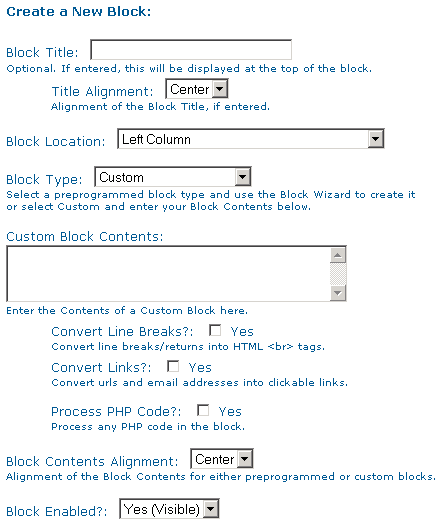
To create a new block, simply click on the Create a New Block link and you'll see the following:
Options on this page, which may be controlled by the Administrator, are as follows:
| Block Title | This field is completed upon adding a new block and can be edited at anytime. This field is optional, but when filled in will be displayed at the top of your menu block. Titles will appear in bold lettering. This field accepts HTML coding, i.e. font style, color, underline, etc.
Note: If you change the font style or color using HTML coding in a block, that change will only be displayed in that block title area and will not apply to the remainder of your site. The font style and color settings can be changed in your Modify Site Display Preferences area. | | Title Alignment | This field controls how your title will be displayed in the block, i.e. centered, left and/or right margin alignment. The default is Center. | | Block Location | This field controls the location in which the block will appear on your site. You may select one of seven (7) options: - Left column
- Right Column
- Top Center
- Bottom Center
- Top Full (Above columns and content)
- Bottom Full (Below Columns and Content)
- Top Banner (Above All Other Blocks).
The default is Left Column.
Note: Block visibility is template dependant. Be sure the template you choose supports the block format(s) you wish to use on your site. | | Block Type |
This field controls the type of block you will be displaying. You may select from preprogrammed block types or create a custom block. The following block types are available: - Custom
- Main Menu
- Users online
- Random Link
- Links to Pages
The default is Custom.
Note: FlexCMS includes a block wizard to make it easier for you to enter your pages and or links to external sites. The wizard only works when you select one of the preprogrammed blocks (see list above). Further instruction on the wizard is included in this manual. | | Custom Block Contents | This field may contain plain text, HTML, JavaScript and PHP/MySQL code and commands. Note: If you include PHP code in your block, you must check the Process PHP Code box before you save your block. Failure to do so, may cause errors and/or cause block coding to not display properly. | If you are creating a new PHP enabled block with custom or untested code, it is strongly suggested that you try it in a new page first to avoid any unexpected errors that prevent you from gaining access to this area to correct them. |
| Convert Line Breaks
| If you would like to convert line breaks/returns into HTML
tags, you'll need to check the box. | Convert Links
| If you would like to convert urls and email addresses into clickable links, you'll need to check this box. | | Process PHP Code | If you add PHP code to a custom block, you must check the box on Process PHP code in order for your code to function properly in the block. Note: If you include PHP code in your block, you must check the Process PHP Code box before you save your block. Failure to do so, may cause errors and/or cause block coding to not display properly. | | Block Contents Alignment | This field controls how the contents of your block will be displayed in the block, i.e. centered, left and/or right margin alignment. The default is Center. | | Block Enabled | This field controls whether or not your block is visible or invisible for everyone. If you select No (Invisible), no one will see your block, including you. If you want to make a block visible, but only for certain groups and/or people, you must select Yes (Visible) from this area and the assign it to the groups/people in the Minimum Permissions Level area below. The default is Yes (Visible). | | Minimum Permissions Level |
This field controls the minimum access level required to view the block. There are a total of 100 access levels possible. You may select from the six (6) preprogrammed levels or create your own. The preprogrammed levels are as follows: - 0 - Everyone
- 1 - Basic Member
- 10 - Content Editor (Blocks and Pages)
- 50 - Manager (Content, Users, Permissions, Preferences)
- 70 - Advanced Manager (All But Settings)
- 100 - Administrator (All)
The default for this field is Everyone. |
|
|
| MEMBERS
|
|
|